| Objective | Use Zoho Mail with your AEserver domain for branded business email. |
| Why customers use this | Branded email without moving the domain away from AEserver; Often attractive for small businesses that want a lower-cost email platform |
| Records to expect | Zoho Mail typically requires a domain verification record plus MX, SPF, and DKIM records. |
Before you start
Have access to both your AEserver Client Area and your account at Zoho Mail.
Know whether you are connecting the root domain (example.com), a subdomain (such as www.example.com or shop.example.com), or both.
Take a quick screenshot or copy of any current DNS records before editing them, especially if the domain already has a live website or email service.
Step 1 – Get the DNS records from Zoho Mail
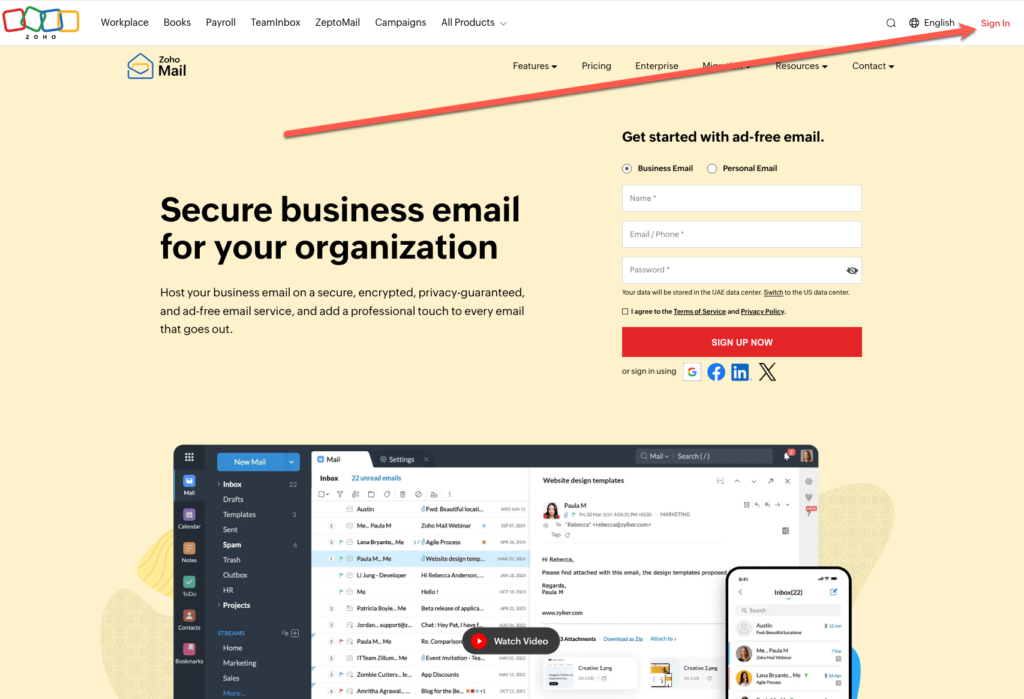
1. Log in to the Zoho Mail Admin Console.
2. Add your domain.
3. Choose the DNS verification method Zoho recommends, usually CNAME or TXT, and copy the generated value.
4. After verification, copy the MX, SPF, and DKIM records from the Email Configuration section.
Step 2 – Add the records in the AEserver Client Area
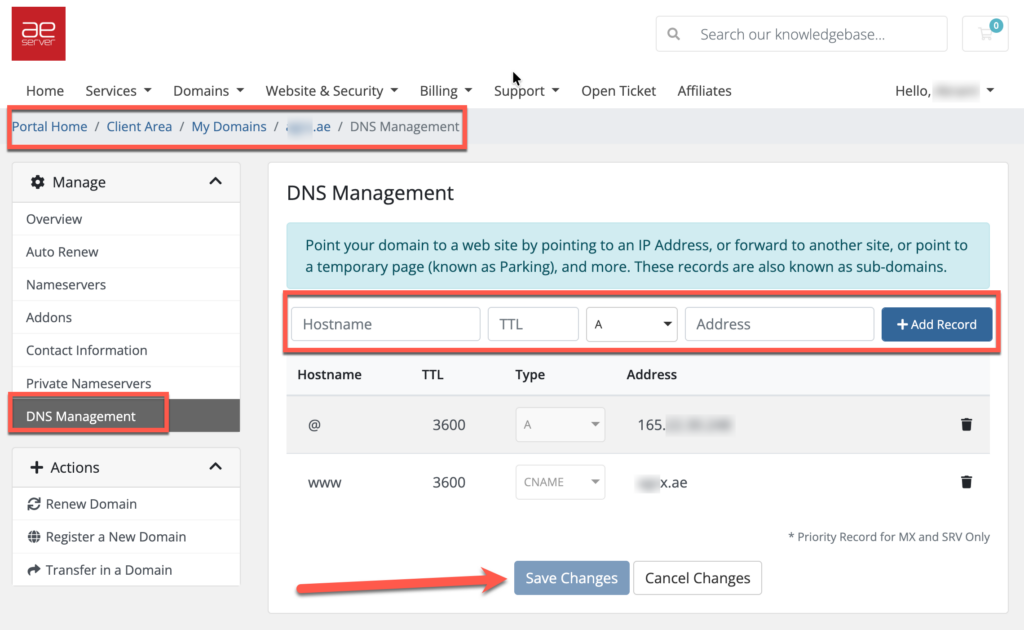
1. Sign in to your AEserver Client Area and open the domain.
2. Go to DNS Management.
3. Add the verification record first, then save.
4. Return to Zoho to confirm ownership.
5. Add the MX records, SPF TXT record, and the DKIM record from Zoho.
6. Save all changes and test email sending and receiving.
Step 3 – Verify and finish
1. Use Zoho’s verification and DNS status tools inside the Admin Console until every record shows as valid.
2. Allow time for DNS propagation. Many changes appear within a few minutes or hours, but full propagation can take up to 24-48 hours.
3. Once the service shows as connected, test the live result. Open the website, send a test email, or visit the exact subdomain you connected.
Benefits to highlight in the KB article
Branded email without moving the domain away from AEserver
Often attractive for small businesses that want a lower-cost email platform
Good deliverability once authentication records are complete
Quick tips
Follow the exact regional values Zoho shows for your account
Do not keep old MX records from a previous provider unless you intentionally need split delivery
After SPF and DKIM are working, consider publishing a DMARC record for better protection
Common issues and fixes
| Common probems | What it usually means / what to do |
| Domain verification fails | The verification record may be on the wrong host or not fully propagated |
| Mail bounces or is delayed | MX priority/order may be incorrect or old MX records may still exist |
| Outbound mail has poor reputation | SPF or DKIM may be incomplete |
If you are not sure which record to edit, or if the domain already has a working website or email service, contact AEserver Support before making changes so we can help you avoid downtime.