AEserver’s DNS Management Tool gives you full control over the DNS records of any domain registered with us, directly from your AEserver client area. Whether you need to point your .ae domain to a website, set up email with Google Workspace, Microsoft 365, or AEserver Business Email, or connect to a platform like Shopify, Wix, or Webflow, this tool lets you add, edit, and delete DNS records without needing cPanel or any technical server access.
This guide walks you through every step, from accessing the tool to managing each record type, with real examples relevant to businesses in the UAE.
| Nameserver | Hostname |
|---|---|
| Nameserver 1 | dns1.aeserver.com |
| Nameserver 2 | dns2.aeserver.com |
| Nameserver 3 | dns3.aeserver.com |
How to Access the DNS Management Tool #
Log in to your AEserver account #
Open your browser and go to https://my.aeserver.com. Enter your email address and password, then click the “Login” button. You can also sign in with your Google account if you have one linked.

Go to Domains, then My Domains #
Once logged in, click on “Domains” in the top navigation menu. A dropdown will appear, click “My Domains” to see the list of all domains in your account.

Select the domain you want to manage #
You will see a table with all your domains, showing the domain name, registration date, next due date, and status. Find the domain you want to configure and click on its name to open the domain management page.

Click “DNS Management” in the left sidebar #
On the domain management page, look at the left sidebar under “Manage”. You will see a list of options. Click on “DNS Management” to open the DNS records editor.

How to Enable DNS Management (If Not Visible) #
If the “DNS Management” option does not appear in the left sidebar of your domain management page, you need to purchase the DNS Host Record Management addon first. This is a one-time purchase for each domain.
Click “Addons” in the left sidebar #
On the domain management page, look at the left sidebar under “Manage” and click on “Addons”.

Purchase DNS Host Record Management #
On the Addons page, you will see the “DNS Host Record Management” addon. It provides external DNS hosting with increased availability and redundancy. Click the “Buy Now for AED 0.00 (FREE)” button to activate it.

After the purchase is complete, the “DNS Management” option will immediately appear in your left sidebar under “Manage”. You can now go back and click on it to start managing your DNS records.
Using the DNS Management Interface #
Once you open the DNS Management Tool, you will see the main interface with two areas:
• Top row, a form to add new DNS records (Hostname, TTL, Type, Address)
• Records table, a list of all existing DNS records for this domain
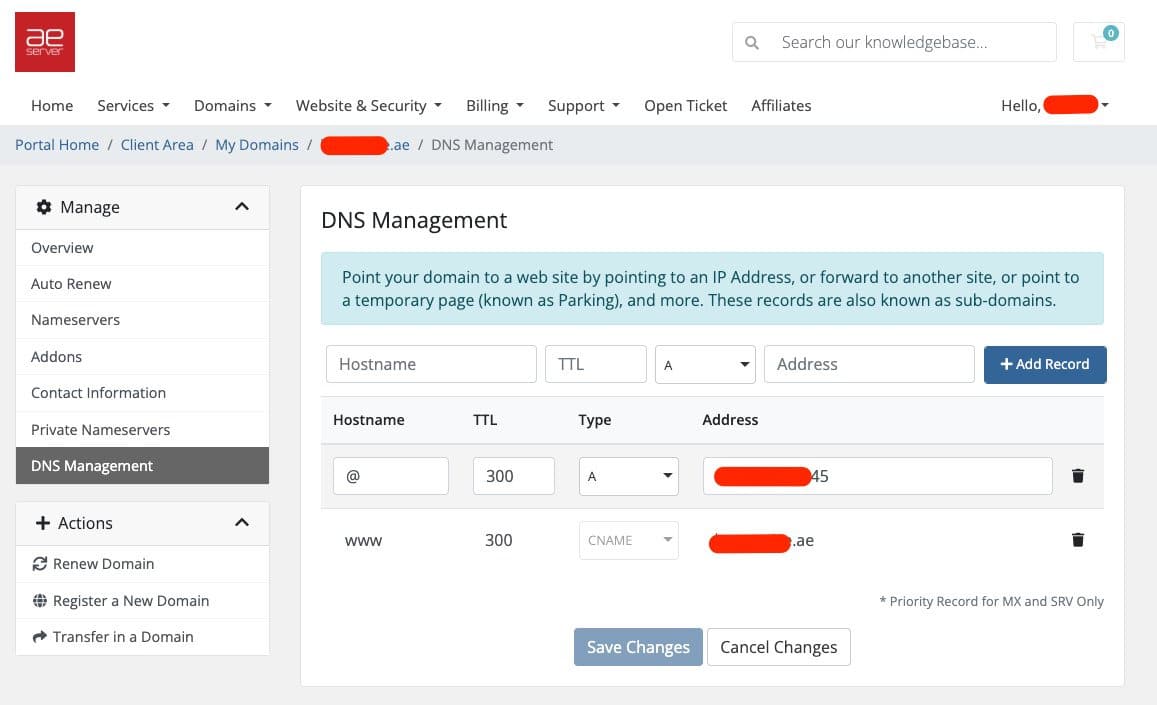
Understanding the fields #
| Field | Description |
|---|---|
| Hostname | The subdomain or hostname. Use @ for the root domain (yourdomain.ae itself), or enter a subdomain name like www, mail, shop, etc. |
| TTL | Time To Live in seconds. Controls how long DNS resolvers cache this record. Common values: 300 (5 min, good for testing), 14400 (4 hours, standard), 86400 (24 hours). |
| Type | The record type: A (IP address), CNAME (alias), MX (email), TXT (verification/security), AAAA (IPv6), SRV (services). |
| Address | The destination value, an IP address (for A records), a domain name (for CNAME/MX), or text string (for TXT records). For MX and SRV records, include the priority number before the value. |
How to Add a DNS Record #
Fill in the record fields at the top #
In the top row of the DNS Management interface, enter the details of the new record you want to create:
• Type the Hostname (e.g., @ for root, www for subdomain)
• Set the TTL (e.g., 300 for quick testing, 14400 for production)
• Select the Type from the dropdown (A, CNAME, MX, TXT, etc.)
• Enter the Address (IP address, domain name, or text value)
Click “+ Add Record” #
After filling in all the fields, click the blue “+ Add Record” button on the right side. The new record will appear in the records table below.
Click “Save Changes” #
After adding all the records you need, click the green “Save Changes” button at the bottom of the page to apply your changes. If you want to discard your changes, click “Cancel Changes” instead.
DNS Record Examples, Full Reference #
Below is a complete list of every DNS record type you can add through the AEserver DNS Management Tool, with real-world examples for each one.
A Record (Address Record) #
An A record maps a domain or subdomain to an IPv4 address. This is the most common record type, used to point your domain to a web server.
AAAA Record (IPv6 Address Record) #
An AAAA record works exactly like an A record, but maps to an IPv6 address instead of IPv4. Use this if your hosting provider has given you an IPv6 address.
CNAME Record (Canonical Name) #
A CNAME record creates an alias that points one domain name to another. It is commonly used for subdomains and for connecting to third-party platforms.
MX Record (Mail Exchange) #
MX records tell the internet where to deliver email for your domain. Every business email setup requires MX records. The priority number determines which server is tried first (lower number = higher priority).
TXT Record (Text Record) #
TXT records store text-based information. They are most commonly used for domain verification, email authentication (SPF, DKIM, DMARC), and security policies. This is the most versatile record type.
SRV Record (Service Record) #
SRV records specify the location of a server for a particular service, such as Microsoft Teams, SIP (voice over IP), or other enterprise applications. The format includes priority, weight, port, and target.
How to Edit or Delete a DNS Record #
Editing an existing record #
To edit a record, simply click on the field you want to change directly in the records table. The fields are inline-editable, you can modify the Hostname, TTL, Type, or Address. After making your changes, click “Save Changes” at the bottom.
Deleting a record #
To delete a DNS record, click the trash icon (🗑) on the right side of the record row. The record will be removed from the list. Don’t forget to click “Save Changes” to confirm the deletion.
Common DNS Configurations for UAE Businesses #
Connecting to Shopify, Wix, Squarespace, and other platforms #
Many UAE businesses use third-party website builders. To connect your .ae domain, you typically add an A record and/or CNAME as specified by the platform.
• Shopify
• Wix
• Squarespace
• Webflow
• Framer
• WordPress.com
• Lovable
• Google Workspace
• Microsoft 365
• Zoho Mail
Each platform provides its own list of A and CNAME records to use. If you need help configuring DNS for any of these, AEserver support can walk you through the setup over chat or WhatsApp.
DNS Record Types, Quick Reference #
| Type | Purpose | Example |
|---|---|---|
| A | Points domain to an IPv4 address | @ → 185.120.22.45 |
| AAAA | Points domain to an IPv6 address | @ → 2606:4700::1 |
| CNAME | Alias pointing to another domain | www → yourdomain.ae |
| MX | Directs email to a mail server | @ → 1 ASPMX.L.GOOGLE.COM |
| TXT | Verification, SPF, DKIM, DMARC | @ → v=spf1 include:_spf.google.com ~all |
| SRV | Service location (Teams, SIP) | _sip._tls → 100 1 443 sipdir.online.lync.com |
Troubleshooting Common DNS Issues #
| Problem | Likely Cause | Solution |
|---|---|---|
| Website not loading after DNS change | DNS has not propagated yet | Wait up to 24-48 hours. Flush your local DNS cache. |
| Email not working | Incorrect or missing MX records | Verify MX records match your email provider’s requirements exactly. |
| “DNS Management” not in sidebar | Addon not purchased | Go to Addons, buy “DNS Host Record Management” for AED 0.00. |
| DNS changes not taking effect | Domain not using AEserver nameservers | Update nameservers to dns1.aeserver.com, dns2.aeserver.com, dns3.aeserver.com. |
| Emails going to spam | Missing SPF, DKIM, or DMARC records | Add TXT records for email authentication and consider managed email spam protection. |
| CNAME conflict with root domain | Cannot add CNAME for @ (root) | Use an A record for root domain, CNAME only for subdomains. |
| Multiple SPF records causing failures | More than one SPF TXT record exists | Merge all SPF includes into a single TXT record. |
Quick Summary #
| 1 | Make sure your domain uses AEserver nameservers: dns1/dns2/dns3.aeserver.com |
| 2 | Log in at my.aeserver.com |
| 3 | Go to Domains, then My Domains, click on your domain |
| 4 | Click “DNS Management” in the left sidebar |
| If not visible: click Addons, buy DNS Host Record Management (AED 0.00) | |
| 5 | Add records using the form at the top (Hostname, TTL, Type, Address) |
| 6 | Click “+ Add Record”, then “Save Changes” |
| 7 | To edit: click the field directly in the table, modify, and save |
| 8 | To delete: click the trash icon, then save |