| Objective | Use your AEserver domain with a WordPress.com website. |
| Why customers use this | Lets you use WordPress.com publishing tools with your own brand domain; Good option for blogs, news pages, and simple business sites |
| Records to expect | WordPress.com can use nameserver connection or manual DNS records, depending on the method chosen. |
Before you start
Have access to both your AEserver Client Area and your account at WordPress.com.
Know whether you are connecting the root domain (example.com), a subdomain (such as www.example.com or shop.example.com), or both.
Take a quick screenshot or copy of any current DNS records before editing them, especially if the domain already has a live website or email service.
Step 1 – Get the DNS records from WordPress.com

1. Log in to WordPress.com and open the site dashboard.
2. Go to Upgrades or Hosting > Domains.
3. Choose Connect existing domain.
4. Pick the connection method recommended for your setup. If you need to keep DNS at AEserver, use the manual DNS method and copy the records shown.
Step 2 – Add the records in the AEserver Client Area
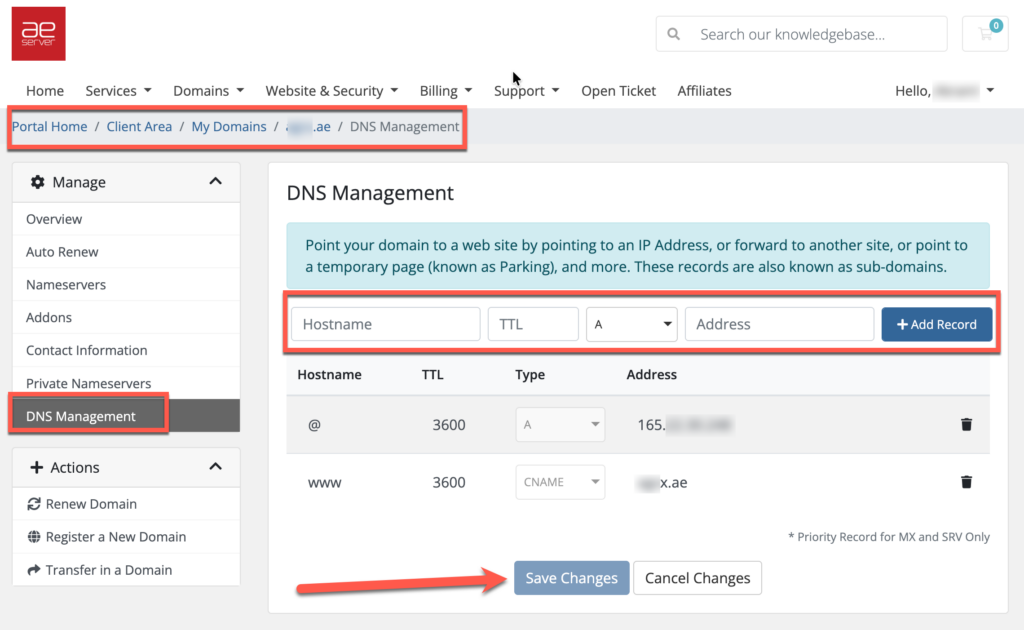
1. Sign in to your AEserver Client Area and open your domain.
2. Open DNS Management if you are using the manual DNS method.
3. Add the records exactly as WordPress.com provides them, or update nameservers only if you intentionally choose the nameserver method.
4. Save your changes.
Step 3 – Verify and finish
1. Return to WordPress.com and complete the connection. Set the custom domain as primary once it is active.
2. Allow time for DNS propagation. Many changes appear within a few minutes or hours, but full propagation can take up to 24-48 hours.
3. Once the service shows as connected, test the live result. Open the website, send a test email, or visit the exact subdomain you connected.
Benefits to highlight in the KB article
Lets you use WordPress.com publishing tools with your own brand domain
Good option for blogs, news pages, and simple business sites
Flexible because you can choose manual DNS or nameservers
Quick tips
Manual DNS is usually best if you also need third-party email or extra records managed from AEserver
Changing nameservers affects the whole DNS zone, not just the website
After connection, set the primary domain so visitors are redirected consistently
Common issues and fixes
| Common problems | What it usually means / what to do |
| Domain added but not primary | Set the custom domain as primary in WordPress.com |
| Email stops after nameserver change | Recreate the required MX and email records at the new DNS host or use manual DNS instead |
| Website opens on the old address | Clear cache and wait for the redirect to update |
If you are not sure which record to edit, or if the domain already has a working website or email service, contact AEserver Support before making changes so we can help you avoid downtime.