The DNS Management Tool is a very powerful tool that uses AEserver’s global & redundant DNS infrastructure to act as the main DNS resolver for your domain names that you purchased from AEserver. DNS management allows you to route/resolve your domain name by linking it to various internet resources such as A records (to map the IP address of the server), MX records (to attach email solutions), CNAME to create pointers for your domain name such as for the www. record. More advanced record types are available such as TXT records, SPF records, AAAA records, NS records, etc
Below are the most common records types used with a domain name and the scenario on when they are used:
web or email—to the right server. Think of DNS as the internet’s phonebook: it converts human-readable domain names into IP addresses that servers use. Below are the most common types of DNS records and how they’re used.
1. A (Address) Record #
Purpose: Maps a domain name to an IPv4 address.
Usage: When you type in example.com, the A record tells browsers and other services which server’s IPv4 address to connect to (e.g., 192.0.2.1).
2. AAAA (IPv6) Record #
Purpose: Similar to the A record but maps a domain name to an IPv6 address.
Usage: As the internet moves toward IPv6, this record helps route traffic to servers with IPv6 addresses (e.g., 2001:db8::1).
3. CNAME (Canonical Name) Record #
Purpose: Points one domain or subdomain to another domain (an alias).
Usage: Often used to manage subdomains and to avoid duplicating DNS records. For example, www.example.com might be a CNAME pointing to example.com, so you only manage the IP in one place.
4. MX (Mail Exchange) Record #
Purpose: Directs email to the correct mail server.
Usage: If your domain uses an external email provider (like Google Workspace or Microsoft 365), you’ll add their mail server addresses as MX records. Email clients then know where to deliver messages.
5. TXT (Text) Record #
Purpose: Stores text data for various verification and security purposes.
Usage: Commonly used for email authentication (SPF, DKIM, DMARC), domain ownership verification, and other app integrations like Google Search Console or Microsoft 365.
6. NS (Name Server) Record #
Purpose: Specifies which name servers are authoritative for a domain.
Usage: When you register a domain, you point it to the DNS provider or web host’s name servers. The NS records tell the world which servers hold the DNS settings for your domain.
7. SRV (Service) Record #
Purpose: Defines the location (hostname and port) of specific services.
Usage: Common in environments like Microsoft 365 or VoIP services, where you need to direct services (e.g., instant messaging or SIP) to the correct server and port.
8. PTR (Pointer) Record #
Purpose: Creates a reverse DNS lookup that maps an IP address back to a domain name.
Usage: Primarily used by email and network services for spam checking and validation. The receiving mail server can check if an IP legitimately corresponds to a sending domain.
AEserver provides a free DNS management tool with each domain name purchased. To use the DNS manager in your client area, ensure that the DNS management option is select when booking a domain name or activate it at a later time from your client area under the domain name settings option.
Please note, the DNS management will only work when the main name servers of your domain name are set to the below name servers. If they are not, make sure to update the name servers before using the tool.
| Nameserver 1 | dns1.aeserver.com |
| Nameserver 2 | dns2.aeserver.com |
| Nameserver 3 | dns3.aeserver.com |
To use the Domain Management Tool, please follow the steps below.
1. Login to your Client Area.
2. Go to Domains > My Domains > Active > DNS Management Tool
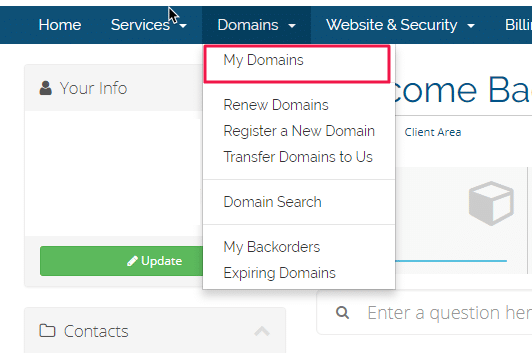
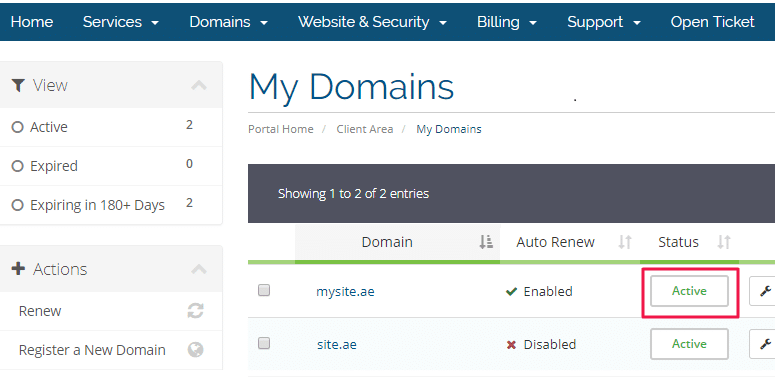
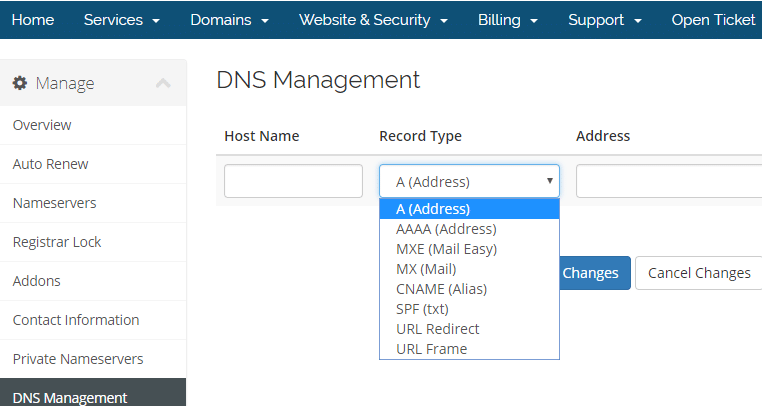
**Note: To add entries, please make sure to put a period (.) on each entry to avoid having the domain name added automatically.
For example, while adding MX for Google Workspace
USE alt1.aspmx.l.google.com. (there is a period after the com)
AND NOT just alt1.aspmx.l.google.com (there is no period after com)
as it will result to alt1.aspmx.l.google.com.domain.com (the domain name is added because no period was put after the google.com)
Newly added feature: SRV Record

The usual format for an SRV record is:
Host Name: _service._protocol.name
Record Type: SRV
Address: weight port target
Priority: numeric value

Example for Office 365:
Host Name: _sipfederationtls._tcp
Record Type: SRV
Address: 1 5061 sipfed.online.lync.com.
Priority: 100
3. Click on Save and allow sometime for DNS propagation (upto 24 hours but usually takes just a few minutes and depends on your ISP’s caching).