Updating your email address in your AEserver account ensures you receive important notifications and account-related updates, this email also serves as the primary ownership login to manage everything in your account.
Follow these steps to update your email address successfully:
- Sign in to your AEserver account – go to our homepage and click Client Login
- Click the dropdown arrow in the upper right corner next to your profile name.
- Select “Account Details.”
- Enter the new email address.
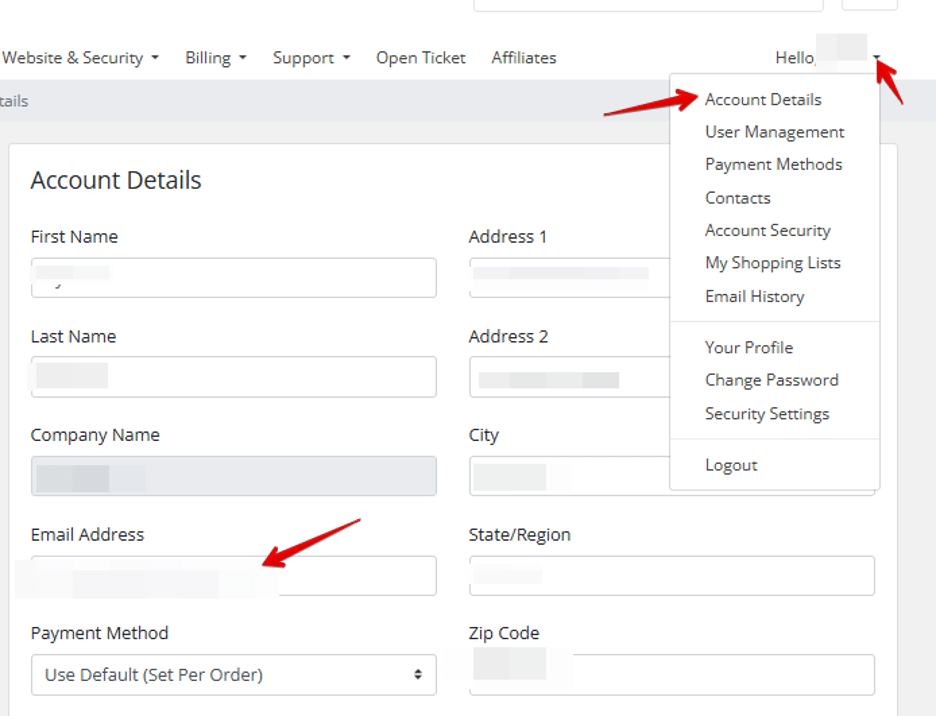
- Click Save Changes.
- Click the dropdown arrow again in the upper right corner next to your profile name.
- Select “Your Profile.”
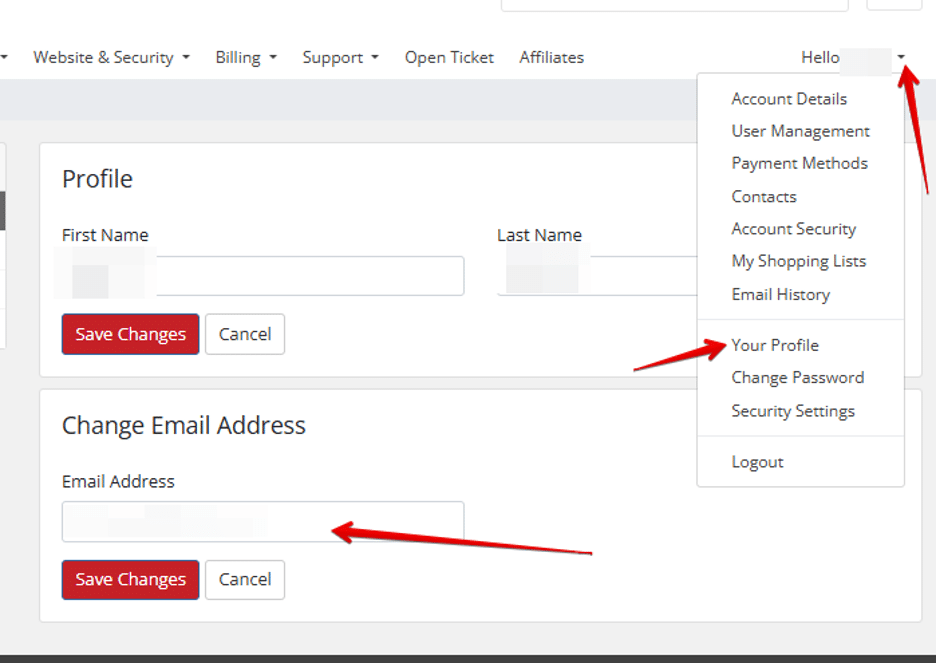
- Enter the same new email address in the Change Email Address box.
- Click Save Changes.
Important Notes
- Ensure that the email address in both “Account Details” and “Your Profile” sections are the same to avoid login issues.
- This email address will be used for all account-related notifications and password recovery.