To change the password for your AEserver account (also known as the client area or client portal), please follow these steps within the Client Area:
- Sign in to your AEserver account by going to our website and clicking my account in the top right corner
- You will need to login with a valid username (email) and password
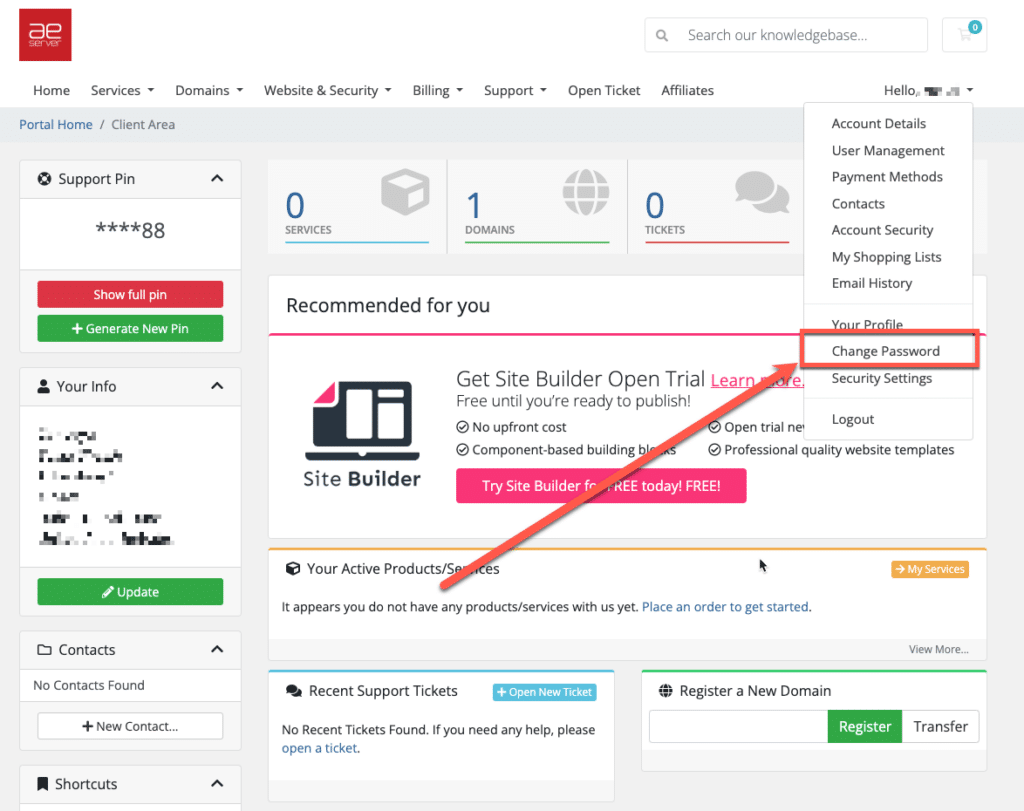
- Click the dropdown arrow in the upper right corner next to your profile name
- Select “Change Password”
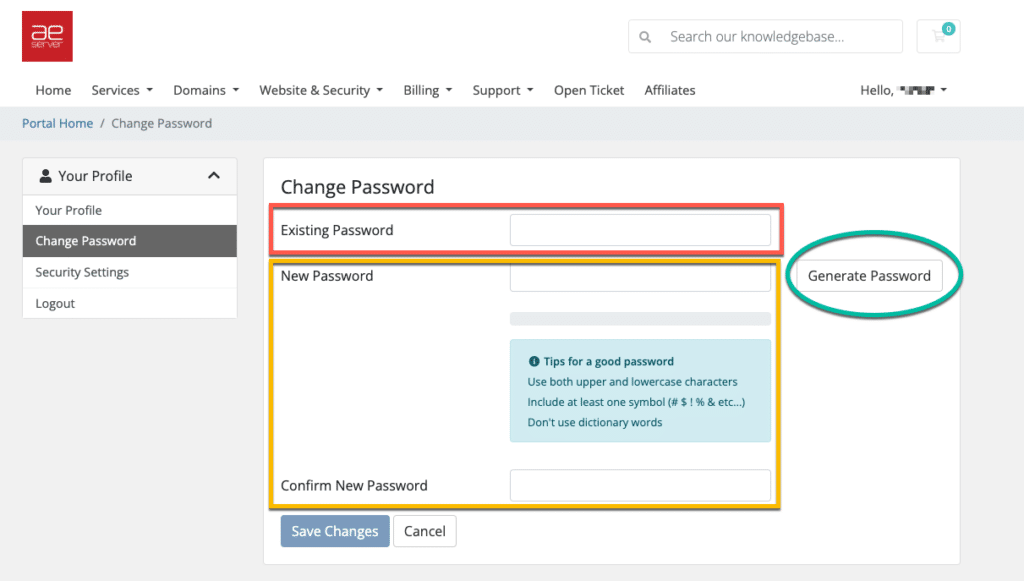
- Enter your current password
- Create a new password and confirm it
- Click “Save Changes” to update your password
Important Password Guidelines
Please note that passwords are case-sensitive. Check the Caps Lock key if it is on or off before entering your password.
For security purposes, we highly recommend creating a strong password that includes:
✅ A mix of uppercase and lowercase letters
✅ Numbers
✅ At least one special character (e.g., !, @, #, $)
Following these guidelines will help keep your account secure and our system will not allow you to use a very un-secure or easy/common password. This is for your security.