How to describe your business to get the best AI-generated website
Introduction #
Your website prompt is the most important input to Spark AI. The better you describe your business, the better your AI-generated website will be. A clear, detailed prompt helps Spark AI understand your business and create a website that truly represents you.
What is a Website Prompt? #
The website prompt is a short description of your business that you enter when you first launch Spark AI. You’ll provide it from your AEserver Client Area when you click the ‘Launch WP Builder’ button. This prompt tells Spark AI what your business does, who you serve, and what makes you unique—allowing it to generate a website tailored to your needs.
How to Write a Great Prompt #
Follow these tips to craft a strong website prompt:
Be specific about your business type and what you offer. #
Instead of ‘I sell things’, describe exactly what you do: ‘I design and sell custom leather handbags.’
Include your target audience. #
Who do you serve? Families, professionals, students, athletes?
Mention your location if relevant. #
Local businesses should include their city or region so Spark AI can emphasize local reach.
Include any key services or products. #
List the 2–3 main things you offer, not everything.
Keep it short—1 to 3 sentences. #
You don’t need to write a novel. Clear and concise is best.
Examples of Weak vs. Strong Prompts: #
| Business Type | Weak Prompt | Strong Prompt |
|---|---|---|
| Restaurant | I have a restaurant | We are an Italian family restaurant in Dubai serving authentic pasta, pizza, and seafood. We cater to families and couples looking for a cosy dining experience. |
| Law Firm | I’m a lawyer | We are a corporate law firm in Abu Dhabi specialising in business contracts, mergers, and commercial litigation for UAE-based companies. |
| Gym | I run a gym | We are a women-only fitness studio in Sharjah offering yoga, Pilates, and HIIT classes. Our focus is on empowering women through health and fitness. |
Spark AI Settings Explained #
When you launch Spark AI, you’ll see several settings to configure. The AI selects the best options based on your prompt but you have the flexibility to make changes to it.
Here’s what each one does and how to choose:
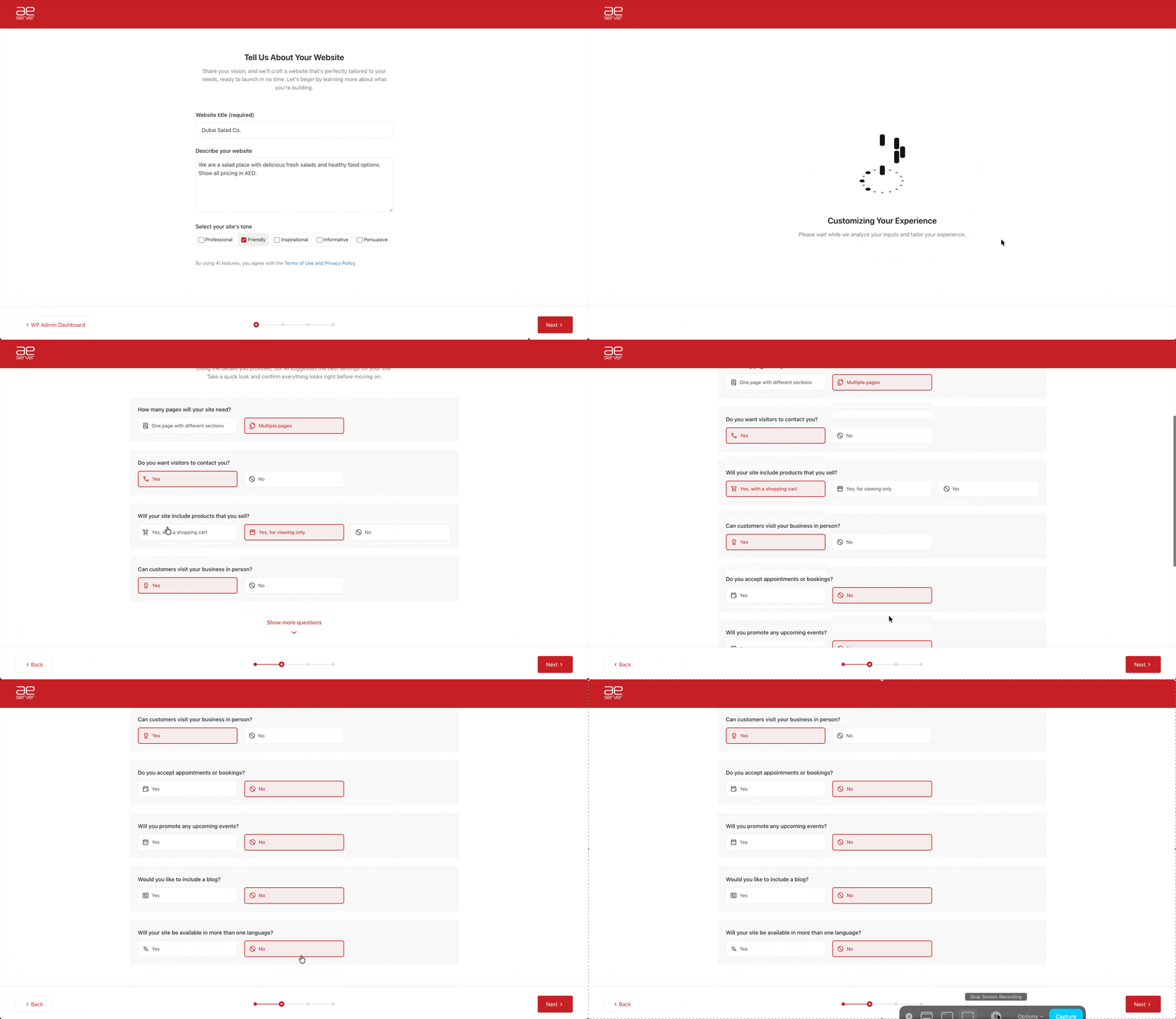
| Setting | What It Does | Tips |
|---|---|---|
| Site Name | Your business name as it will appear on the website, browser tab, and header. | Use your real business name. This is the first thing visitors see. |
| Site Description | A short tagline or description of your business. May appear in search results. | Keep it under 20 words. Think of it as a one-line summary of what you do. |
| Tone | The personality and voice of your website copy (e.g., Professional, Friendly, Inspirational, Informative, Persuasive). | Choose the tone that matches your brand personality. You can always change it later. Spark AI generates content based on this. |
| How many pages do you need? | Determines whether the page is a single page site or a multi-page site. | Select the option that applies. Spark AI sets up your website accordingly. |
| Do you want visitors to contact you? | Helps Spark AI with your site design and add forms to your page. | Select the closest match. This helps Spark AI choose relevant templates and imagery. |
| Will your site include products that you sell? | Helps determine whether you need a store front/ecommerce on your site. | This impacts the layout and the ability to support cart functionality. |
| Can customers visit your business in person?/ Do you accept appointments or bookings?/ Will your site be available in more than one language? | All of these settings feed into your websites setup of things like – a scheduling tool, multi language support, etc. | Always cross check Spark AI’s auto-selected options and select the ones relevant to your site. |
Tips for Better Results #
Complete all settings fields. #
Don’t skip any fields—each one helps Spark AI create a better site.
Review the generated site carefully. #
Check all pages and sections. Use the AI Agent to refine specific parts if needed.
You can always reset and start again. #
If you’re not happy with the result, reset your site to generate a new one. Your content is replaced, but your domain and account stay the same.
Try different tones or design styles. #
Experiment to see what fits your brand best.
What Happens After You Submit? #
Once you’ve filled in your prompt and settings and clicked Generate:
1. Spark AI asks you to specify the pages you want to include, select only those which are relevant, you can always add more later.
2. It then generates a full website based on your prompt and settings.
3. The process takes about 1–2 minutes.
4. You’ll see a preview of your new site.
5. You can then edit it using the AI Agent (chat with AI), Site Assistant (guided editing), or WordPress Editor (manual full control).