| Objective | Use your domain with Google Workspace email and related services. |
| Why customers use this | Professional email on your own domain; Access to Gmail, Calendar, Drive, Meet, and Admin tools |
| Records to expect | Google Workspace setup typically requires a TXT record for domain verification and MX records for email delivery. SPF, DKIM, and sometimes DMARC are also recommended. |
Before you start
Have access to both your AEserver Client Area and your account at Google Workspace.
Know whether you are connecting the root domain (example.com), a subdomain (such as www.example.com or shop.example.com), or both.
Take a quick screenshot or copy of any current DNS records before editing them, especially if the domain already has a live website or email service.
Step 1 – Get the DNS records from Google Workspace
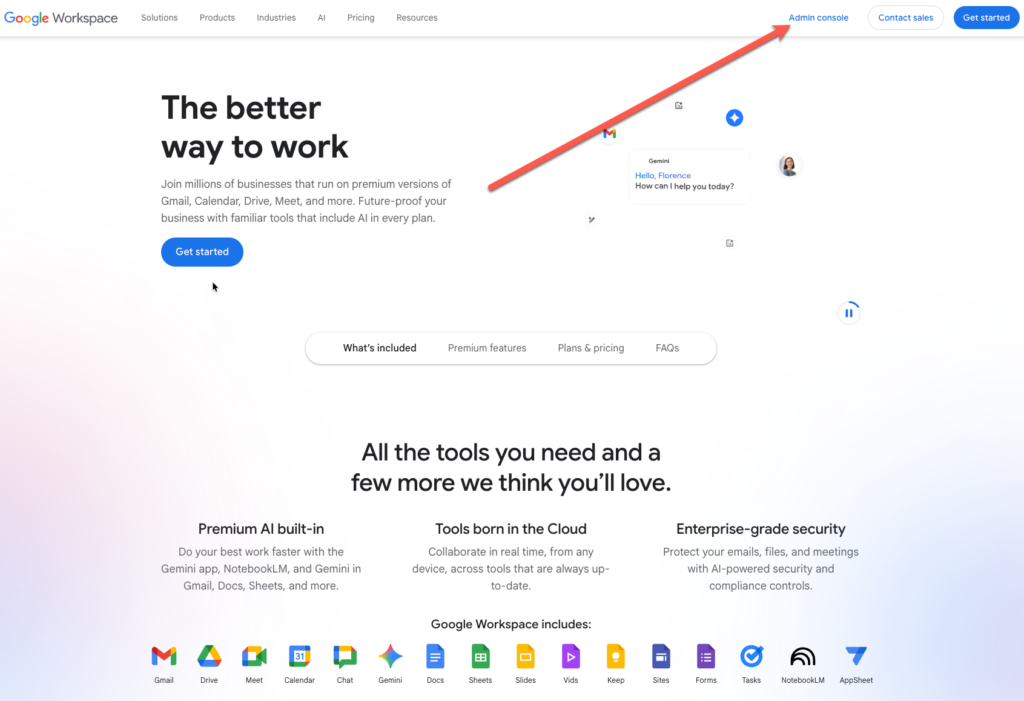
1. Sign in to Google Admin console.
2. Add your domain if it is not already listed.
3. Copy the TXT verification record Google provides and verify domain ownership.
4. After verification, open the Gmail setup flow and copy the MX records. Then configure SPF and DKIM if prompted.
Step 2 – Add the records in the AEserver Client Area
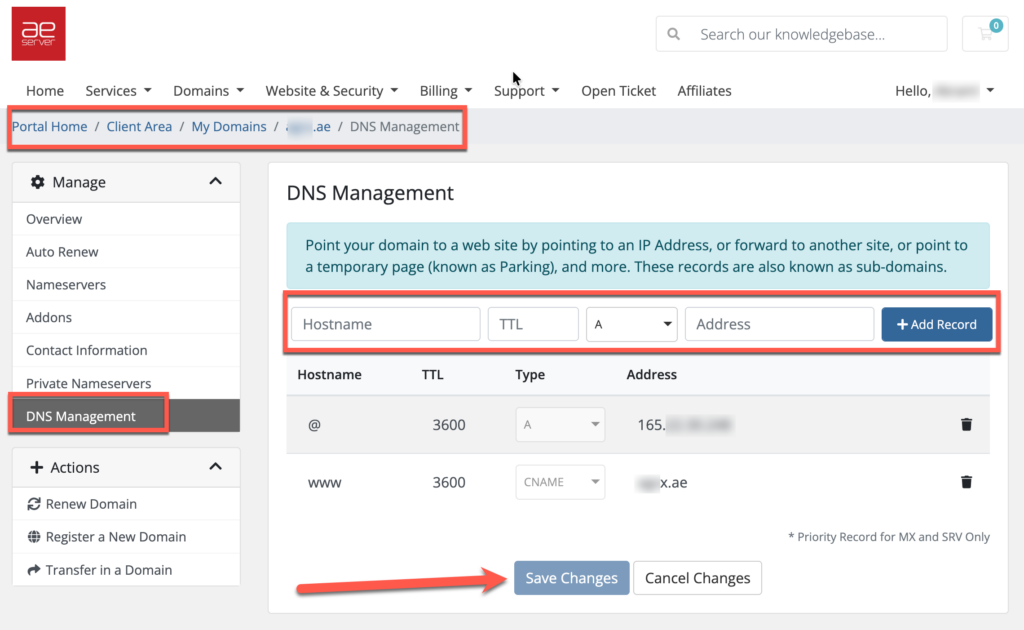
1. Sign in to your AEserver Client Area and open the domain.
2. Open DNS Management.
3. Add the TXT verification record first and save.
4. Once verified in Google, add the MX records exactly as shown by Google. Remove old MX records only if they belong to a previous email provider you are replacing.
5. Add the SPF TXT record and later the DKIM record generated by Google Admin if required.
Step 3 – Verify and finish
1. Return to Google Admin and click Verify or Activate Gmail. Then send a test email in both directions.
2. Allow time for DNS propagation. Many changes appear within a few minutes or hours, but full propagation can take up to 24-48 hours.
3. Once the service shows as connected, test the live result. Open the website, send a test email, or visit the exact subdomain you connected.
Benefits to highlight in the KB article
Professional email on your own domain
Access to Gmail, Calendar, Drive, Meet, and Admin tools
Stronger deliverability when MX, SPF, DKIM, and DMARC are set correctly
Quick tips
Plan the email cutover carefully before removing old MX records
Only one SPF TXT record should exist for the same host; merge values if necessary
DKIM activation often happens after Google generates a selector for your domain
Common issues and fixes
| Common problems | What it usually means / what to do |
| You are not receiving mail | Old MX records may still be active or the new ones may be incomplete |
| Emails land in spam | SPF, DKIM, or DMARC may not be set correctly |
| Google says the domain is not verified | The TXT record may be missing, truncated, or added under the wrong host |
If you are not sure which record to edit, or if the domain already has a working website or email service, contact AEserver Support before making changes so we can help you avoid downtime.