| Objective | Set up Microsoft 365 services such as Outlook email on your AEserver domain. |
| Why customers use this | Professional business email and collaboration tools; Works well for companies already using Outlook and Office apps |
| Records to expect | Microsoft 365 commonly requires a TXT record for verification, MX records for mail, and may also require CNAME, SRV, SPF, and DKIM-related records depending on the services you enable. |
Before you start
Have access to both your AEserver Client Area and your account at Microsoft 365.
Know whether you are connecting the root domain (example.com), a subdomain (such as www.example.com or shop.example.com), or both.
Take a quick screenshot or copy of any current DNS records before editing them, especially if the domain already has a live website or email service.
Step 1 – Get the DNS records from Microsoft 365
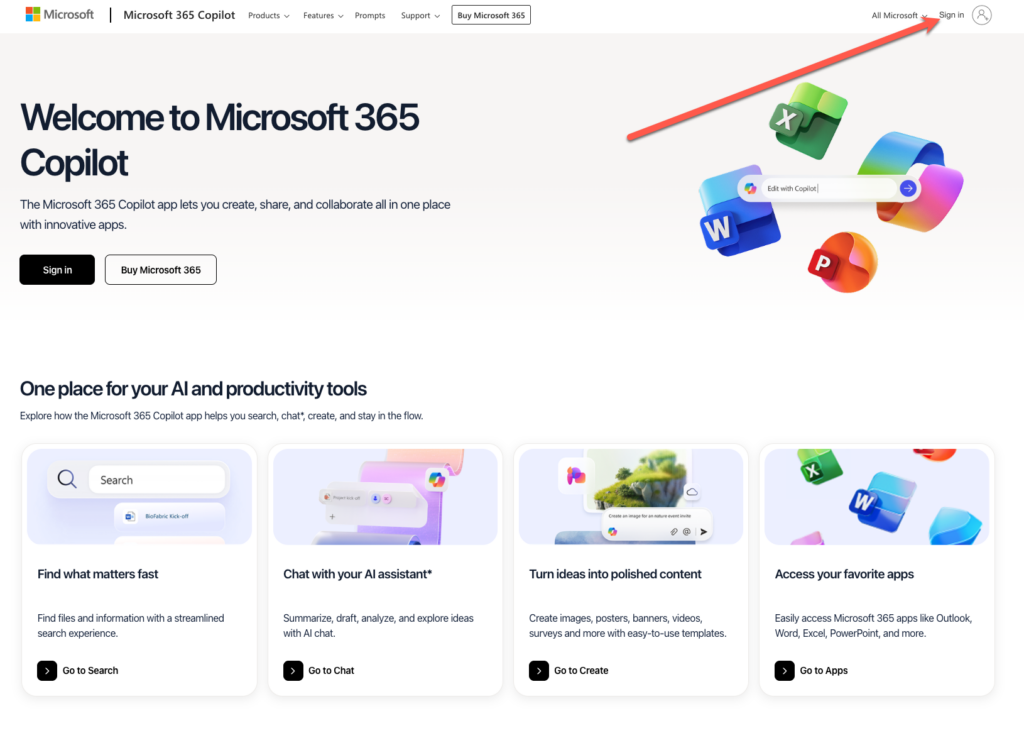
1. Sign in to the Microsoft 365 admin center.
2. Go to Settings > Domains or the domain setup wizard.
3. Add your domain and copy the verification TXT record.
4. Continue through the wizard and copy all required DNS records for Exchange Online and any other services you use.
Step 2 – Add the records in the AEserver Client Area
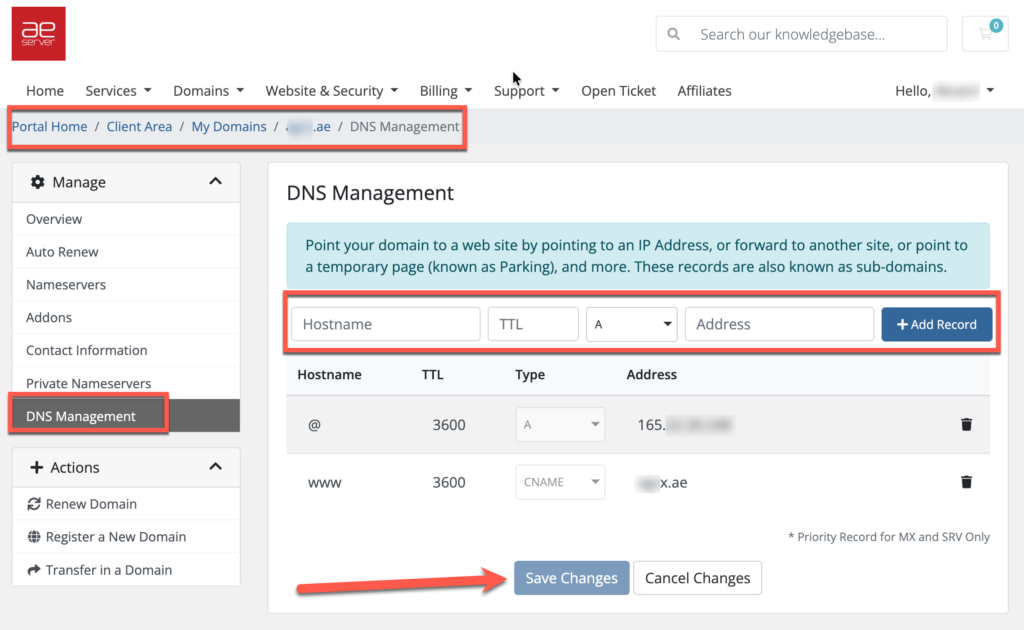
1. Sign in to your AEserver Client Area.
2. Open Domains and select the domain.
3. Open DNS Management.
4. Add the TXT verification record and save.
5. After Microsoft confirms ownership, add the MX, CNAME, SRV, and SPF records the wizard provides. Do not delete existing mail records until you are ready to switch mail service.
6. If DKIM is enabled later, add the extra CNAME records Microsoft gives you.
Step 3 – Verify and finish
1. Return to the Microsoft 365 admin center and complete the domain check. Then test email, Outlook autodiscover, and Teams or other services if used.
2. Allow time for DNS propagation. Many changes appear within a few minutes or hours, but full propagation can take up to 24-48 hours.
3. Once the service shows as connected, test the live result. Open the website, send a test email, or visit the exact subdomain you connected.
Benefits to highlight in the KB article
Professional business email and collaboration tools
Works well for companies already using Outlook and Office apps
Supports advanced enterprise and security features
Quick tips
The exact record list depends on the Microsoft 365 services enabled
Make the change during a low-traffic period if you are moving mail from another provider
Keep a backup of the old DNS records before editing them
Common issues and fixes
| Common problems | What it usually means / what to do |
| Mail flow is delayed or missing | Old MX records may still be receiving mail or TTL caches are still active |
| Outlook setup is not automatic | One of the autodiscover-related records may be missing |
| Domain setup wizard shows an error | A required record may not be published yet or was entered under the wrong host |
If you are not sure which record to edit, or if the domain already has a working website or email service, contact AEserver Support before making changes so we can help you avoid downtime.